Flash your ESP32-C6 radiometer
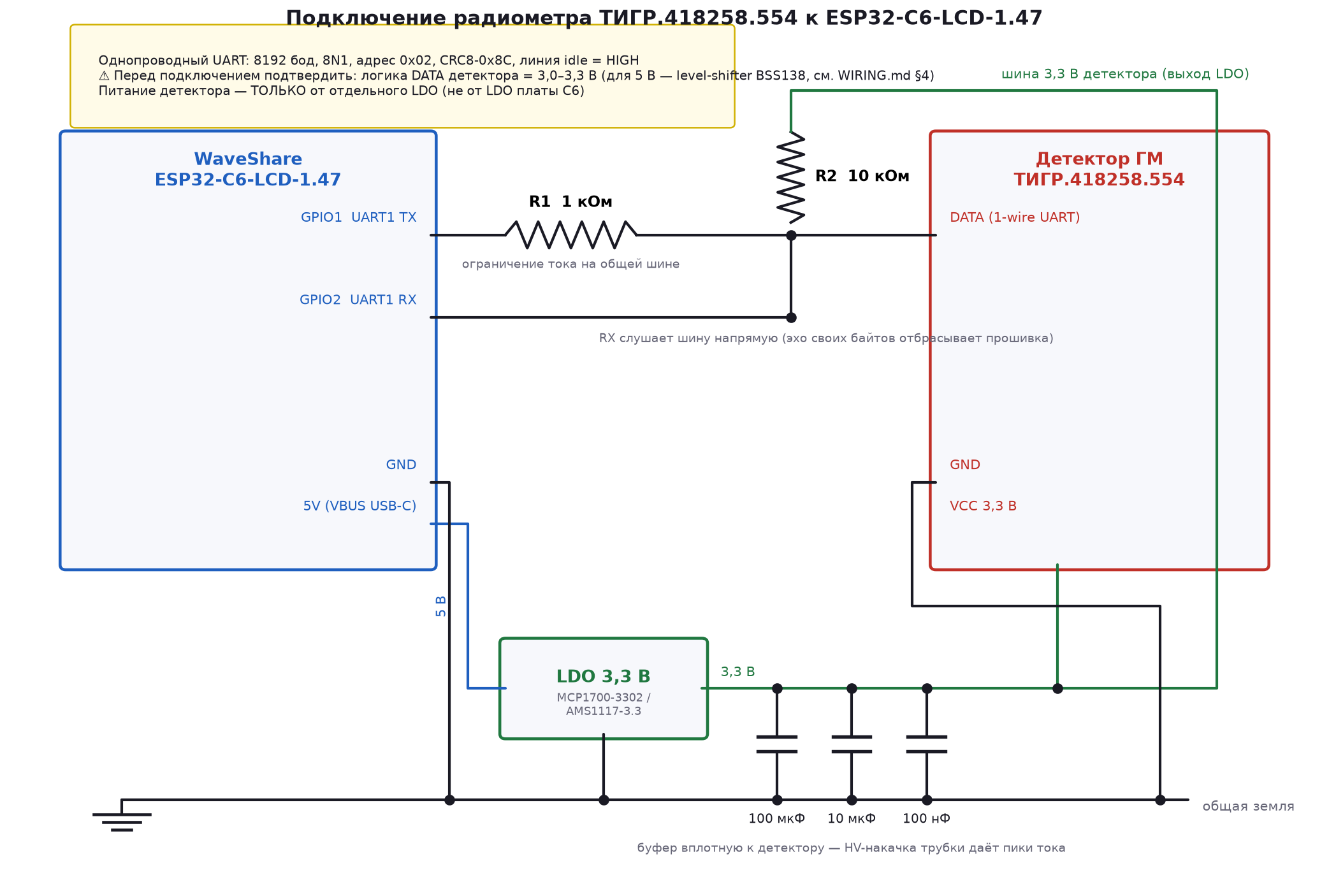
This installs the firmware for a WaveShare ESP32-C6-LCD-1.47 wired to a TIGR gamma detector. After flashing it shows the dose rate, accumulated dose and detector status on its 1.47" screen, reports readings to Home Assistant over Zigbee2MQTT (mains-powered router), and pushes live telemetry to the dashboard. Onboard RGB LED = dose-alarm light in HA.
Flashing happens entirely in your browser over USB — nothing is uploaded anywhere, and
no password is required to flash. Zigbee + screen work immediately; to enable the
Wi-Fi dashboard push, set the Wi-Fi credentials once (see the project README —
menuconfig or NVS), so no secret is baked into this public binary.
Wiring: schematic (PNG).
Install firmware
Plug the ESP32-C6 board into a USB port with a data cable, then press Connect & Flash and pick the device's serial port when prompted.
Advanced options
The C6 uses native USB-Serial/JTAG, where baud is virtual — leave the speed at 115200 unless you are flashing through an external UART adapter. Erase-first clears any half-written flash from a previous failed attempt and makes writes far more reliable.
If the port doesn't appear or connecting fails
The C6's native USB-Serial/JTAG auto-reset into the bootloader is sometimes flaky. Force download mode by hand:
- Unplug the board.
- Hold the BOOT button (GPIO9).
- Plug it back in while still holding BOOT.
- Release BOOT after about 2 seconds.
- Press Connect & Flash again, keeping the speed at 115200 and erase-first checked.
Still stuck after a failed write? Use Recover below to wipe the flash, then flash again.
After flashing
The board reboots, brings up its screen, and starts looking for a Zigbee network to join. To let it pair:
- Open Zigbee2MQTT and click Permit join (or run permit-join for your coordinator).
- The device joins automatically and appears as a Router named
C6-LCD-1.47byBiometal. - In Home Assistant you'll get a light entity for the RGB LED plus link-quality and temperature sensors; the included automation pushes weather + host metrics down to the screen.
To re-pair later (e.g. on a new network): long-press the BOOT button to factory-reset the Zigbee stack, then permit-join again.